
Claude Usage Deck
Monitor your Claude.ai limits at a glance
Stop navigating to Settings every time you want to check your usage. Claude Usage Deck shows session, weekly, and Sonnet limits as a color-coded badge icon with countdown timer — right in your browser toolbar.
How it works
Install the extension
Add it from the Chrome Web Store or load unpacked from GitHub. The extension fetches your org ID automatically on first run.
Glance at the badge
The toolbar icon shows your usage at a glance — color indicates status (green / amber / red), badge text shows time until reset.
Click for details
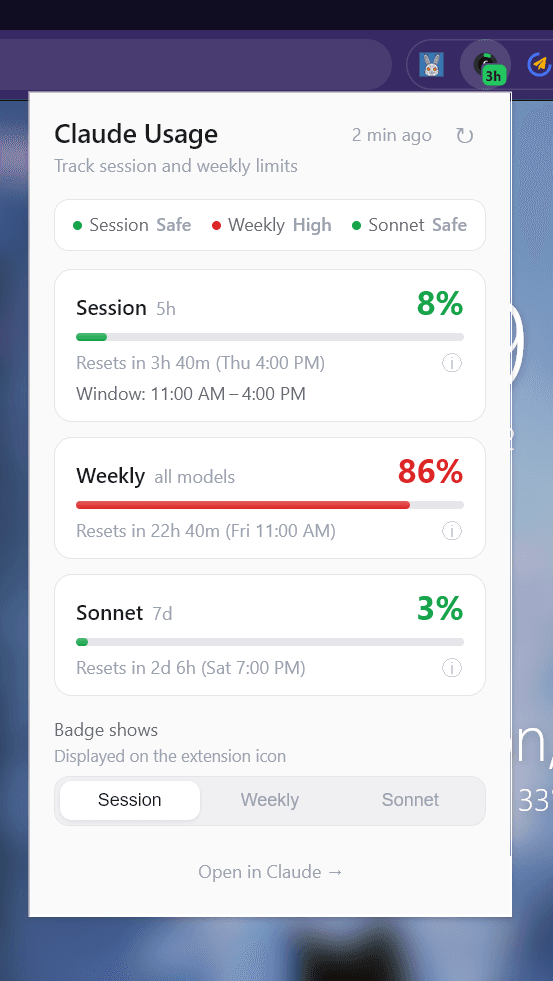
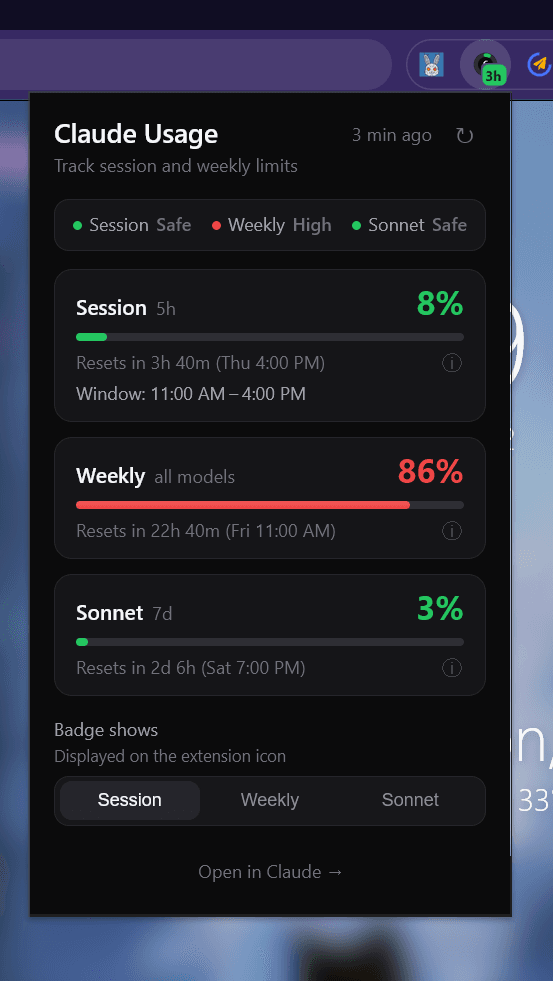
The popup shows all three metrics with progress bars, countdowns, and a status summary. Pick which metric the badge displays.
Features
Adaptive badge icon
Solid colored circle at 16px for instant status recognition. Ring with percentage number at 32px+ for detail.
Countdown badge
Badge text shows time until reset — "45m", "2h", "3d". Always readable, rendered by Chrome natively.
Status summary
Quick decision support at the top: Session Safe, Weekly High, Sonnet Safe. Know instantly if you can keep working.
Three metrics
Session (5h window), Weekly All Models (7d), and Weekly Sonnet (7d) — each with progress bar, percentage, and countdown.
Window Anchor Insight
See when your 5h session window started and when it resets. Power tip: anchor your window early with a quick Haiku message.
Badge metric selector
Choose which metric the toolbar icon displays — Session, Weekly, or Sonnet. Setting persists across browser restarts.
Color-coded status
Green (0–49%), amber (50–79%), red (80–100%). Applied to progress bars, badge icon, and status dots.
Light & dark theme
Follows your browser preference automatically. Both themes carefully designed for readability and visual comfort.
Zero tracking
No analytics, no accounts, no external servers. Data flows from claude.ai to your browser. All stored locally.
Pro tip: Window Anchor
Your 5-hour usage window starts when you send your first message, floored to the clock hour. If you send a quick "hi" using Haiku at 6:00 AM, your window anchors to 6:00–11:00 AM — even if you don't start real work until 8 AM.
This gives you a predictable reset schedule instead of having the window start mid-morning when you're deep in work. Claude Usage Deck shows this window right in the Session metric card.
Install
From source (GitHub)
- Clone the repository
- Open
chrome://extensions - Enable Developer Mode
- Click Load unpacked → select the
extension/folder
Privacy
Claude Usage Deck does not collect analytics, does not send data to third parties, and does not require an account. Usage data is fetched from claude.ai using your browser cookies and stored locally. The extension is open source — you can read every line.
Full privacy policy →Permissions
alarms — schedule usage polling every 5 minutes
storage — cache usage data and your badge preference locally
host_permissions (claude.ai) — read usage data from the Claude.ai API using your browser cookies