
User Guide
Beetroot is a clipboard manager for Windows. It automatically saves everything you copy -- text, images, code, URLs -- and lets you search, preview, transform, and paste any of it later. Think of it as an undo button for your clipboard that never runs out.
Version: 1.6.5 Platform: Windows 10 and Windows 11 Price: Free Last updated: 2026-04-04
Table of Contents
- Getting Started
- Interface Overview
- Features
- Clipboard Capture and History
- Search
- AI Text Transforms
- AI Vision Transforms
- Background AI Processing
- OCR (Text Extraction from Images)
- Starring and Notes
- Batch Operations
- Themes and Appearance
- Backup and Recovery
- Multi-Monitor Support
- Pin Window (Always on Top)
- Follow Cursor
- Plain Text Paste
- Content Detection
- Source App Tracking
- Auto-Update
- Settings Reference
- Quick Reference (full list: Keyboard Shortcuts)
- FAQ & Troubleshooting
Getting Started
Get productive with Beetroot in under five minutes:
-
Install Beetroot. Run the installer (.exe or .msi). It starts automatically after installation.
-
Beetroot runs in the background. Look for the Beetroot icon in your system tray (bottom-right corner of your taskbar, near the clock). It silently captures everything you copy.
-
Open Beetroot with Ctrl+` (backtick). This is the key to the left of 1 on most keyboards. The Beetroot window appears on whichever monitor your cursor is on.
-
Copy something, then open Beetroot. You'll see your copied text (or image) in the list. Copy a few more things -- they all appear in order.
-
Paste from history. Open Beetroot, click any clip (or use arrow keys and press Enter). Beetroot pastes it directly into the app you were just using, then hides itself.
-
Search your history. Just start typing. Beetroot searches instantly across all your clips. Press Enter to paste the selected result.
-
Preview a clip. Press Space to see the full content of any clip -- including syntax-highlighted code, full images, and metadata.
That's it. Beetroot runs silently in the background, capturing your clipboard. Open it whenever you need something you copied earlier.
Tip: If `Ctrl+`` doesn't work on your keyboard layout (e.g., AZERTY or QWERTZ), go to Settings > Shortcuts and record a new hotkey that works for you.
Interface Overview
Main Window
The main window is what you see when you press the global hotkey. It has these sections from top to bottom:
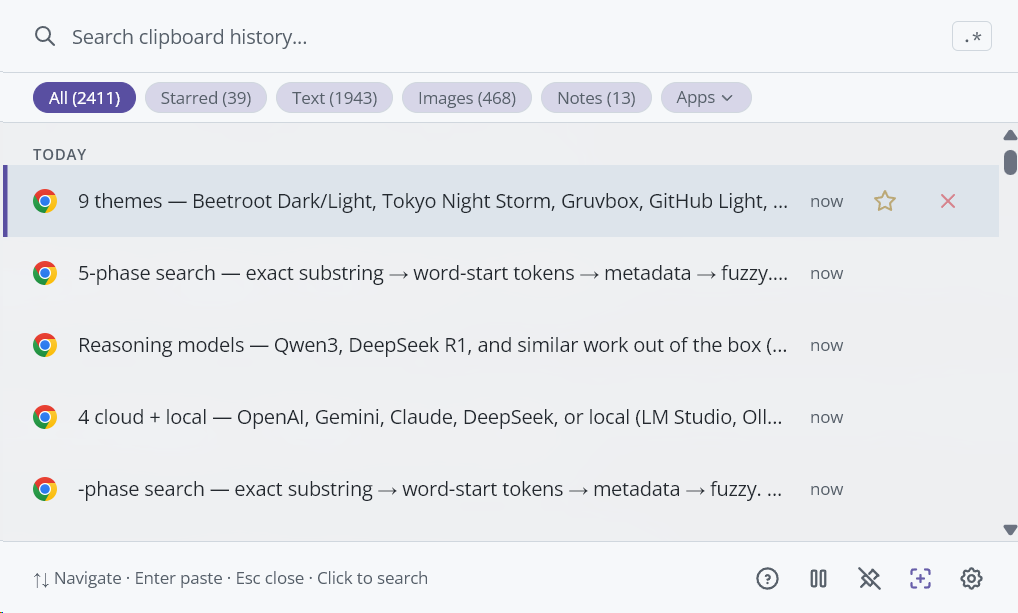
| Section | Description |
|---|---|
| Drag handle | Only visible when window is pinned. Lets you drag the window around. |
| Search bar | Type to search your clipboard history. |
| Filter bar | Filter chips (All, Starred, Text, Image, Notes) plus an Apps dropdown. |
| Clipboard list | Scrollable list of your clips, grouped by date. |
| Footer bar | Shortcut hints, plus buttons for Help, Pause, Pin, Follow Cursor, and Settings. |
How the window behaves:
- No-focus mode (default): Beetroot never steals focus from the app you're typing in. Your cursor stays exactly where it was -- same behavior as Win+V. Navigation works via keyboard hook when the window is visible.
- Opens on the monitor where your cursor is
- Window position: choose Center (default), Top Left, Top Right, Bottom Left, or Bottom Right in Settings > General
- Hides automatically when you click outside
- Press
Escapeto hide it - When pinned, stays visible and doesn't hide on click-away
Search Bar
The search bar is at the top of the main window. It is focused automatically when you open Beetroot, so you can start typing immediately.
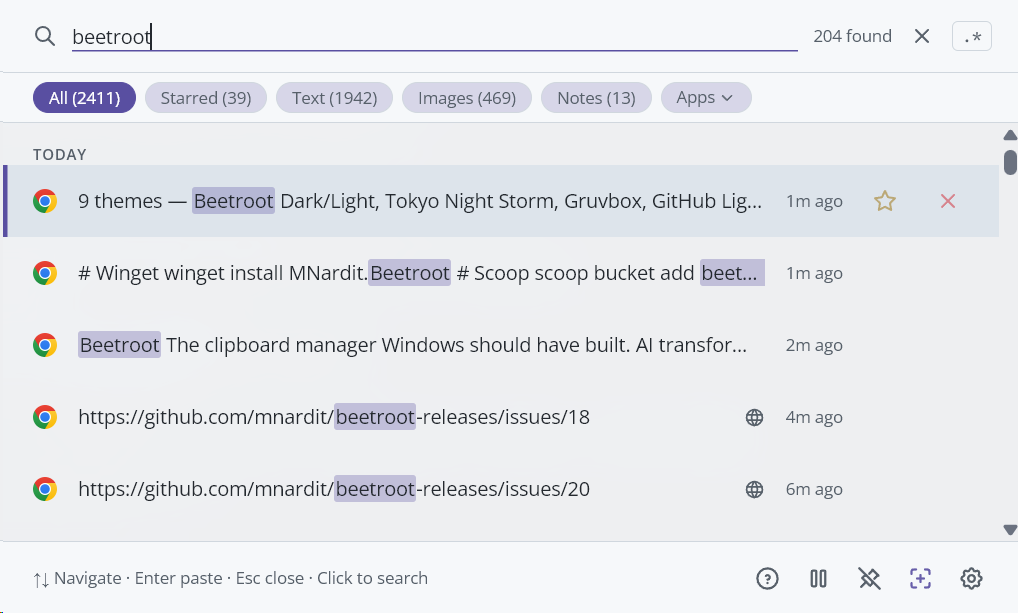
| Element | Description |
|---|---|
| Search input | Type to search. Results update instantly (with a tiny delay to avoid flickering). |
Regex toggle (.*) | Click to switch between normal search and regex search. Highlighted when regex mode is active. |
| Result count | Shows how many clips match your search (e.g., "12 found"). Only visible when searching. |
| Clear button (X) | Appears when there's text in the search. Click to clear and show all clips. |
Tip: Search looks at clip content, notes, source app names, and window titles. If your normal search doesn't find what you need, try the regex toggle for pattern matching.
Filter Bar
Below the search bar, filter chips let you narrow what's shown.
| Filter | Shows |
|---|---|
| All | Every clip in your history. |
| Starred | Only clips you've starred (marked as favorites). |
| Text | Only text clips (no images). |
| Image | Only image clips. Appears only if you have images in history. |
| Notes | Only clips that have a note attached. Appears only if any clip has a note. |
| Apps | A dropdown that filters by the application a clip was copied from (e.g., Chrome, VS Code). |
Each filter chip shows a count in parentheses.
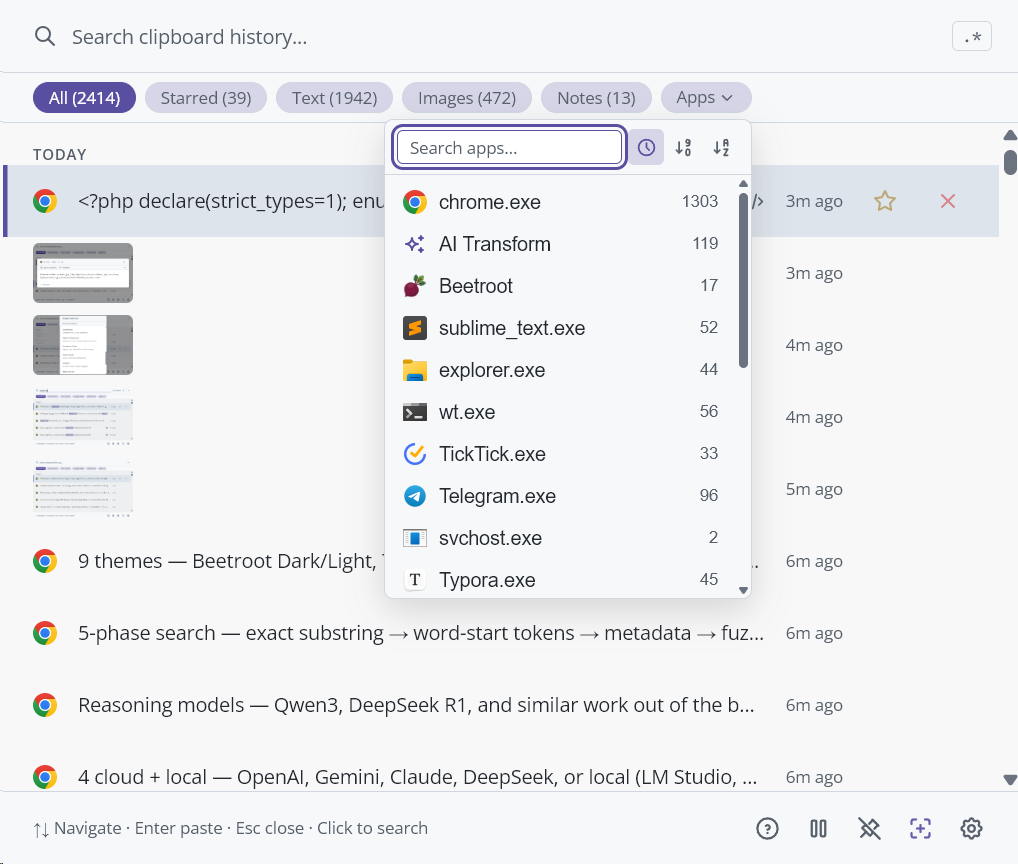
Apps dropdown: Click the "Apps" button to see a list of all source applications. The dropdown includes:
- A search field to find apps by name
- Sort buttons: by last used, most used, or alphabetical
- An "AI Transform" entry for clips generated by AI
Navigate filters with Left Arrow / Right Arrow keys.
Clipboard List
The main area shows your clips in a scrollable, virtualized list. Clips are grouped by date:
- Today
- Yesterday
- This week
- Older
Each clip row shows:
| Element | Description |
|---|---|
| App icon | Small icon of the application the text was copied from. AI-generated clips show a sparkle icon. |
| Content preview | First line of text, or a thumbnail for images. Search matches are highlighted in yellow. |
| Content type badge | Colored label: URL (blue), Email (purple), Code (green), JSON (orange), or a color swatch for color values. |
| Note icon | Small icon indicating this clip has a note attached. |
| Relative time | "2m ago", "3h ago", "Yesterday", etc. |
| Star button | Click to star/unstar a clip. Starred clips are never auto-deleted. |
| Delete button | Click to remove a clip from history. |
| Multi-select checkbox | Appears when multi-select mode is active. |
New clip animation: When a new clip arrives, it flashes briefly at the top of the list.
Pasting indicator: When you paste a clip, it briefly shows a "pasting" state.
Footer Bar
The bottom bar of the main window.
Normal mode:
| Element | Description |
|---|---|
| Hint text | Shows key shortcuts: "Enter paste / Space preview / Alt+T transform / Esc close" (adapts based on context). |
| ? button | Opens the keyboard shortcuts panel. |
| Pause button | Pauses or resumes clipboard monitoring. When paused, a yellow banner appears above the list. |
| Pin button | Toggles "Pin on top" mode. See Pin Window. |
| Crosshair button | Toggles "Follow cursor" mode. See Follow Cursor. |
| Gear button | Opens Settings. |
Multi-select mode (when one or more clips are checked):
| Element | Description |
|---|---|
| Selected count | "3 selected - Ctrl+Click to toggle" |
| Paste dropdown | Merges selected text clips and pastes them. Choose a separator: Newline, Comma, Space, Tab, or None. |
| Delete button | Deletes all selected clips. |
| Cancel button | Exits multi-select mode. |
Preview Panel
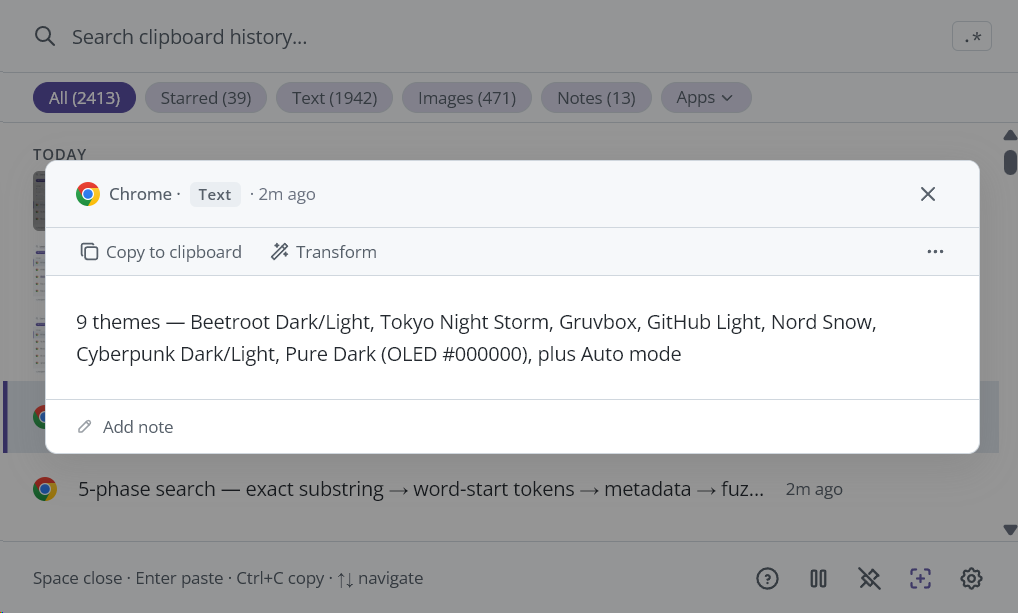
A full-screen overlay showing the complete content of a clip. Open it by pressing Space on any clip, or via the context menu. The panel adapts to three content modes:
Text mode — clean reading view with adaptive height. Short clips get a compact panel, long ones scroll.
Code mode — syntax highlighting with line numbers and a word wrap toggle. The header shows the detected programming language.
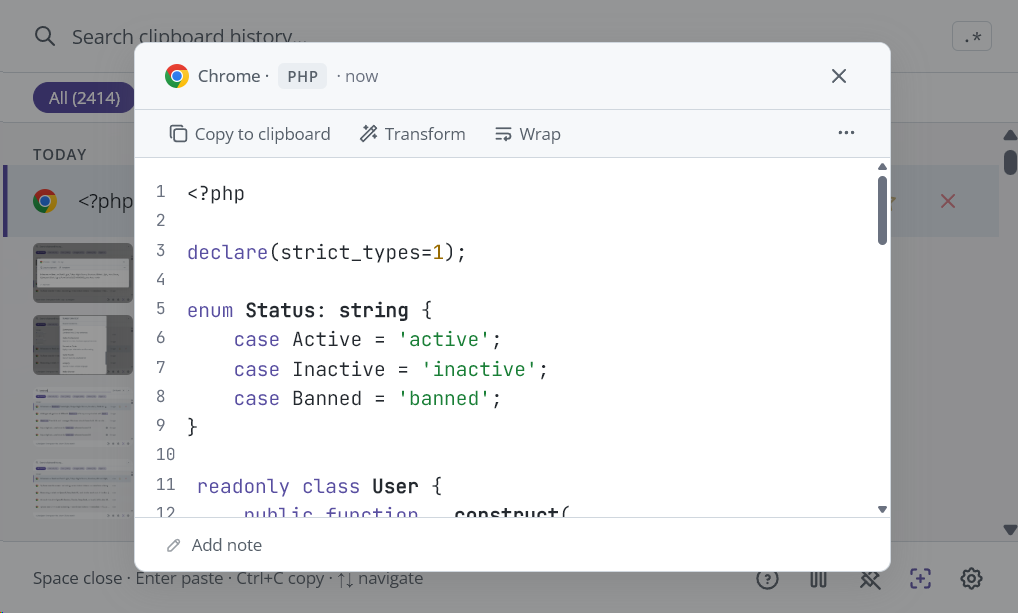
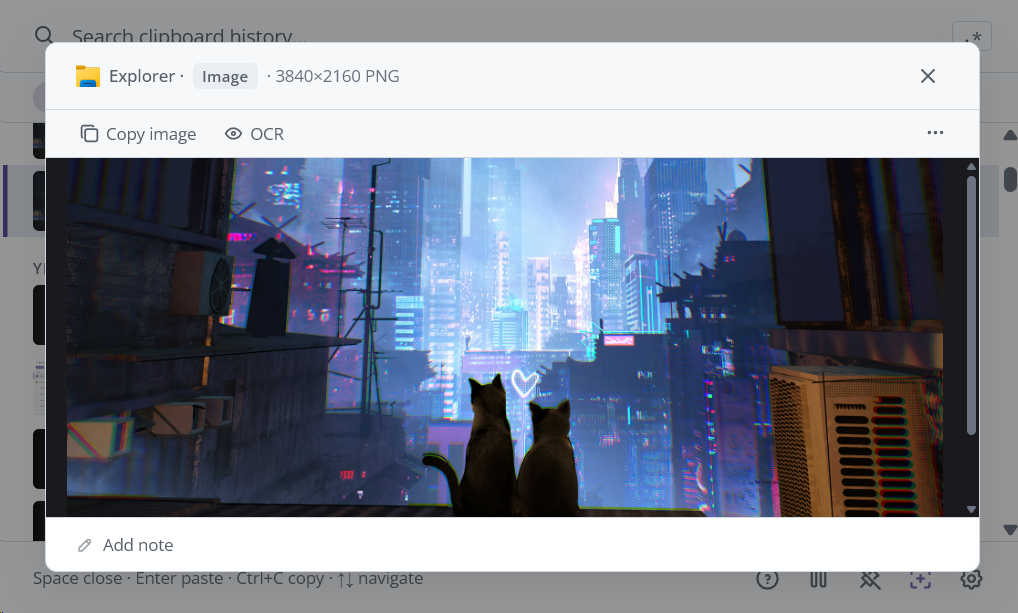
Image mode — dark background with click-to-zoom. Image dimensions shown in header.
| Element | Description |
|---|---|
| Header | Source app icon (human-readable names like "Chrome", "VS Code"), content type badge, and relative timestamp. |
| Content area | Text, syntax-highlighted code with line numbers, or zoomable image (click to toggle fit/100%). |
| Action bar | Copy, Transform, OCR (images), Wrap toggle (code), and ⋯More menu. |
| Color swatch | If the clip is a color value, shows a visual preview of that color. |
| Note input | Collapsed by default with a pencil icon. Click to expand and edit. Notes save automatically when you navigate away or close the panel. |
Keyboard shortcuts in Preview:
SpaceorEscape-- CloseArrow Up / Down-- Browse to previous/next clip without closing previewCtrl+C-- Copy the content to clipboardEnterin the note field -- Save note and blur
Context Menu
Right-click any clip (or press Shift+F10 / the ContextMenu key) to see the context menu.
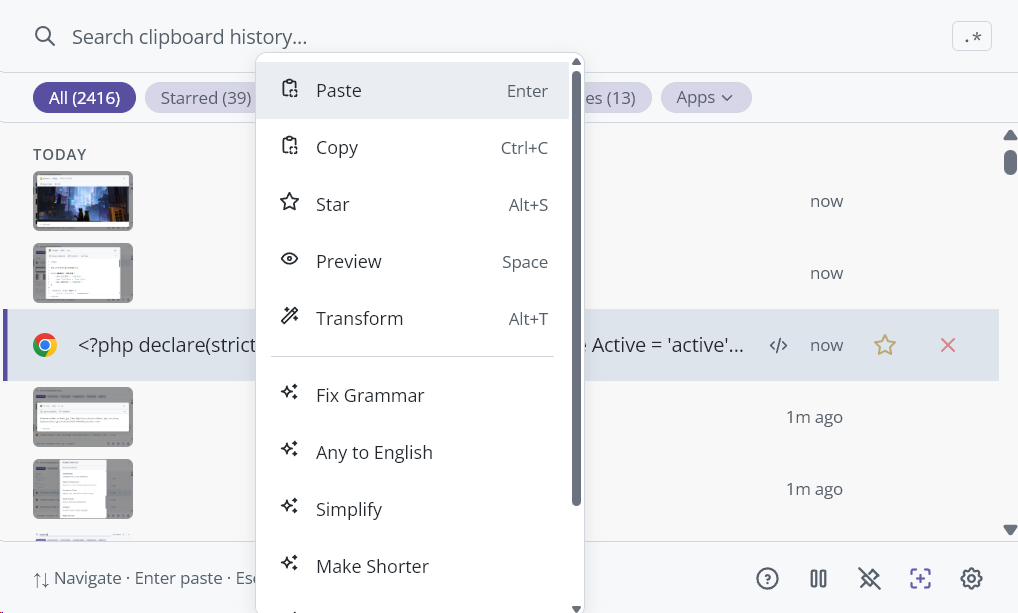
| Menu Item | When Visible | Keyboard Hint |
|---|---|---|
| Paste | In auto-paste mode (not pinned, not copy-only) | Enter |
| Copy | Always | Ctrl+C |
| Star / Unstar | Always | Alt+S |
| Preview | Always | Space |
| Transform | Text clips only | Alt+T |
| Show in Explorer | Image clips only | -- |
| Extract text (OCR) | Image clips only | -- |
| AI Vision prompts | Image clips, when AI is configured | -- |
| Open in browser | When clip contains a URL | -- |
| AI Quick Access prompts | Text clips, when AI is configured | -- |
| Delete | Always | Alt+Del |
Navigate with Arrow Up/Down, activate with Enter or click, close with Escape.
The AI Quick Access section shows your prompts that have "Quick Access" enabled (up to 5). Each runs immediately from the context menu without opening the Transform panel.
Transform Menu
A panel for transforming text clips. Open it with Alt+T or via the context menu.
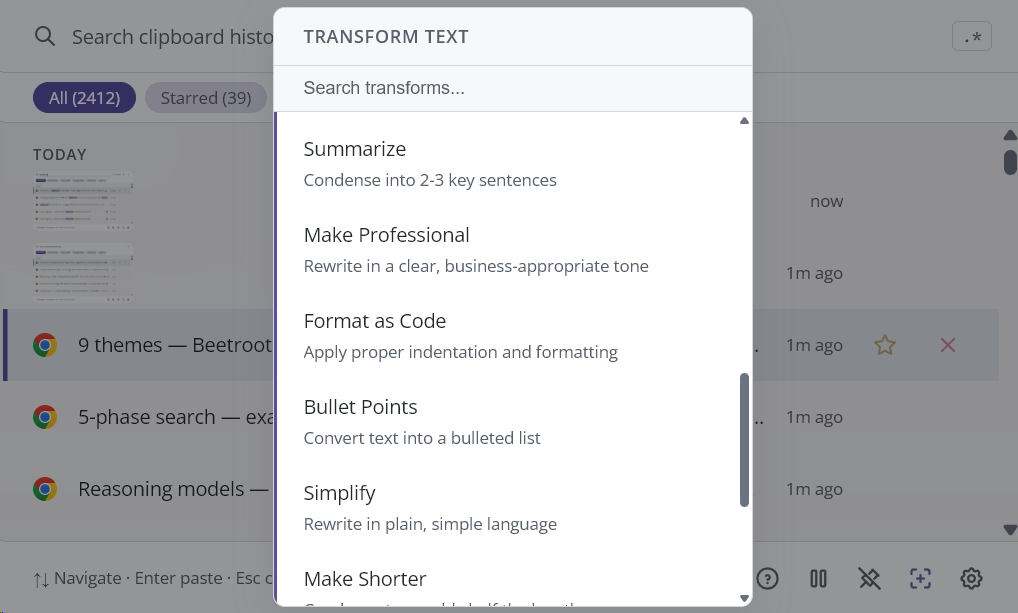
Text transforms (instant, no AI needed):
| Transform | What it does |
|---|---|
| UPPERCASE | Converts all text to uppercase. |
| lowercase | Converts all text to lowercase. |
| Title Case | Capitalizes the first letter of each word (Unicode-aware: Cyrillic, CJK, Arabic). |
| Trim whitespace | Removes leading/trailing whitespace and collapses multiple spaces. |
| Remove spaces | Strips all whitespace from the text. |
| Single line | Joins multiline text into one line. |
| Sort lines | Alphabetical sort of all lines. |
| Remove duplicates | Deduplicates lines, keeping one of each. |
Each text transform shows a live preview of the first 60 characters. A search box at the top lets you filter through transforms when the list gets long.
AI transforms: Below the text transforms, if you have AI configured, all your AI prompts appear. Select one to send the clip's text to your AI provider and save the result as a new clip.
If AI is not configured, you'll see "Set API key in Settings" (or "Set Local LLM endpoint in Settings" for local providers).
The active AI model is shown next to the "AI Transforms" header.
Settings
A full-page panel with 7 tabs. Open it from the gear icon in the footer bar. Press Escape to close without saving, or click "Save" to apply changes.
The sidebar tabs are:
- General
- Shortcuts
- Language
- Appearance
- AI
- Data
- About
See the Settings Reference section for detailed documentation of every option.
System Tray
Beetroot places an icon in your Windows system tray (notification area).
Icon: Adapts automatically to your Windows theme (light or dark taskbar).
| Action | Result |
|---|---|
| Left-click | Show or hide the Beetroot window. |
| Right-click | Opens a menu with three options. |
Tray menu:
| Menu Item | Description |
|---|---|
| Show / Hide | Toggle the main window. |
| Pause / Resume | Pause or resume clipboard monitoring. |
| Quit | Exit Beetroot completely. |
Onboarding (Welcome Guide)
A 5-step wizard that appears on first launch.
| Step | Title | Content |
|---|---|---|
| 1 | Meet Beetroot | Introduction to what Beetroot does. |
| 2 | Press to open | Explains the global hotkey and system tray. |
| 3 | Smart Search | How to search and use regex mode. |
| 4 | AI Transforms | How to transform text with Alt+T. |
| 5 | You're all set! | Summary of click-to-paste, right-click options, and Settings. |
Navigate with arrow keys or click Next/Skip. You can replay this guide anytime from Settings > About > "Show welcome guide".
Keyboard Shortcuts Panel
A quick-reference overlay. Open it by clicking the ? button in the footer bar. Press Escape or ? again to close.
Update Banner
When an update is available, a banner appears at the top of the main window.
| State | What you see |
|---|---|
| Available | "Update available: vX.Y.Z" with a Download button and a "Later" dismiss button. |
| Downloading | "Downloading update..." with a progress percentage. |
| Ready | "Update ready. Restart to apply." with a "Restart now" button. |
You can also check for updates manually in Settings > About.
Features
Clipboard Capture and History
Beetroot monitors your Windows clipboard in the background. Every time you copy text or an image, Beetroot saves it.
What gets captured:
- Text (any length up to ~1 MB)
- Images (up to ~10 MB)
- Rich text / HTML content (stored alongside plain text)
What doesn't get captured:
- Content copied from password managers (Beetroot detects and skips these)
- Content copied while monitoring is paused
Deduplication: If you copy the same text again, Beetroot doesn't create a duplicate. Instead, it moves the existing clip to the top and updates its timestamp.
History limits: By default, Beetroot keeps 500 clips. You can change this to 100, 250, 1000, or Unlimited in Settings > General. When the limit is reached, the oldest non-starred clips are removed.
Auto-delete: Optionally, Beetroot can automatically delete non-starred clips older than 1 day, 7 days, or 30 days. Set this in Settings > General. Starred clips are never auto-deleted.
Ordering: Clips are sorted by most recently used (copied or pasted). Starred clips are always included regardless of history limit. Use the Starred filter to view only starred clips.
Tip: Star important clips (Alt+S) so they're never automatically removed, no matter what your history limit or auto-delete settings are.
Search
Beetroot offers two search modes: normal search and regex search.
Normal Search (default)
Just start typing in the search bar. Beetroot uses a multi-phase search:
- Exact substring match in clip content and notes -- highest priority.
- Word-start matching -- your query matches the beginning of words (useful for finding "JavaScript" by typing "java scr").
- Secondary fields -- searches source app name and window title when content matches are few.
- Secondary word-start -- word-start matching in source app and window title.
- Levenshtein fuzzy -- tolerates typos (edit distance ≤ 1) when exact methods find fewer than 5 results. "timout" finds "timeout".
The search engine runs in Rust with accent folding -- "cafe" finds "café", "resume" finds "résumé". Results are ranked by match quality, then by recency. Search matches are highlighted in yellow in the list.
Regex Search
Click the .* button in the search bar to switch to regex mode. Type any regular expression pattern (e.g., \d{3}-\d{4} to find phone-number-like patterns).
- Case-insensitive by default
- Invalid patterns show an error message below the search bar
- Searches content, notes, source app, and window title
Toggle back by clicking .* again.
Tip: You can search across all fields -- if you remember the app you copied from but not the exact text, try searching for the app name.
AI Text Transforms
Beetroot can transform text clips using AI. You bring your own API key (BYOK) -- Beetroot never stores or transmits your content except to the AI provider you choose. All API calls are made from native Rust code.
Supported Providers
| Provider | Models | API Key Source |
|---|---|---|
| OpenAI | gpt-5.4-nano (fast/cheap), gpt-5.4-mini (smarter) | platform.openai.com |
| Google Gemini | gemini-2.5-flash-lite (fast), gemini-2.5-flash (smarter) | aistudio.google.com |
| Anthropic | claude-haiku-4-5 (fast), claude-sonnet-4-6 (smarter) | console.anthropic.com |
| DeepSeek | deepseek-chat (fast), deepseek-reasoner (deep reasoning) | platform.deepseek.com |
| Local LLM | Any model via Ollama, LM Studio, or compatible endpoint | No key needed |
Setup
- Open Settings > AI.
- Select your provider.
- For cloud providers: paste your API key and click "Test" to verify it works.
- For Local LLM: select a preset (LM Studio or Ollama) or enter a custom endpoint. Click "Test" to connect.
Built-in Prompts
Beetroot comes with 10 built-in AI prompts:
| Prompt | What it does |
|---|---|
| Fix Grammar | Corrects grammatical errors without changing meaning. |
| Any to English | Detects the language and translates to English. |
| Summarize | Condenses text into 2-3 key sentences. |
| Make Professional | Rewrites in a clear, business-appropriate tone. |
| Format as Code | Applies proper indentation and formatting. |
| Bullet Points | Converts text into a bulleted list. |
| Simplify | Rewrites in plain, simple language. |
| Make Shorter | Condenses to roughly half the length. |
| Explain This | Explains in simple terms for anyone. |
| Extract Key Data | Extracts names, dates, numbers, URLs from text. |
Custom Prompts
You can create up to 20 custom prompts (including the 10 built-ins) in Settings > AI. Each prompt has:
- A name (up to 20 characters)
- An instruction text (up to 500 characters)
- A "Quick Access" checkbox
Quick Access
Check "Quick Access" on up to 5 prompts to make them appear directly in the right-click context menu. This lets you apply common transforms with a single right-click, without opening the full Transform panel.
Using AI Transforms
Method 1: Transform panel
- Select a text clip.
- Press
Alt+T(or right-click > Transform). - Choose a text transform (instant) or an AI prompt (sends to your provider).
- The result is saved as a new clip in your history.
Method 2: Quick Access from context menu
- Right-click a text clip.
- Click one of your Quick Access AI prompts at the bottom of the menu.
- The result is saved as a new clip.
Tip: AI transforms have a 30-second timeout. If the request takes too long, you'll see an error. Text longer than 50,000 characters cannot be transformed.
AI Vision Transforms
Starting in v1.6.5, Beetroot can analyze images from your clipboard history using AI vision models.
How to use:
- Find an image clip in your history (screenshot, photo, scan, etc.).
- Right-click it → AI.
- Choose a vision prompt.
- The image is sent to your AI provider. The text result is saved as a new clip.
Built-in vision prompts:
| Prompt | What it does |
|---|---|
| Read Text | OCR from photos, screenshots, handwritten notes |
| Describe Image | Get a text description of what's in the image |
| Extract Data | Pull structured data from tables, receipts, prescriptions |
| Summarize Image | Quick summary of visual content |
| Translate Image Text | Translate text found in images |
Custom vision prompts are supported -- create your own in Settings > AI.
Vision-capable providers:
- Cloud: OpenAI GPT-5.4, Anthropic Claude (Haiku/Sonnet), Google Gemini 2.5, DeepSeek
- Local: Ollama (llava, bakllava, moondream), LM Studio
Tip: For full privacy, use a local vision model via Ollama or LM Studio. Even small models (4B parameters) can accurately read handwritten text.
For detailed setup instructions, see the AI Setup Guide.
Background AI Processing
AI transforms (both text and vision) run in the background starting in v1.6.5. The UI never freezes while waiting for an AI response.
How it works:
- Click an AI prompt (text or vision).
- The menu closes instantly. You can keep working.
- The transform runs in the background.
- When done, the result appears as a new clip at the top of your history.
- If Beetroot is hidden, a native Windows notification pops up. Click it to bring Beetroot to the front.
You can queue multiple transforms -- they run one by one in order.
OCR (Text Extraction from Images)
Beetroot can extract text from copied images using Windows built-in OCR (no internet required).
How to use OCR:
- Copy an image (screenshot, photo, etc.).
- Open Beetroot and find the image clip.
- Right-click it and select "Extract text (OCR)".
- Beetroot extracts the text and saves it as a new text clip.
A toast notification tells you when extraction succeeds or if no text was found.
Tip: OCR uses your Windows language settings. It works best with clear, high-contrast text.
Starring and Notes
Starring marks a clip as a favorite:
- Starred clips are never auto-deleted and always included regardless of history limit.
- Starred clips are never auto-deleted, even when history limits are reached.
- Toggle with the star icon on each clip,
Alt+S, or right-click > Star/Unstar.
Notes let you annotate any clip:
- Open the Preview panel (press
Space) and type in the "Note" field at the bottom. - Notes are saved automatically.
- Clips with notes show a small note icon in the list.
- You can filter to show only clips with notes using the "Notes" filter chip.
- Notes are included in search.
Batch Operations
Select multiple clips and act on them at once.
How to enter multi-select mode:
Ctrl+Clickon any clip, orCtrl+Spaceto toggle the currently highlighted clip
Checkboxes appear on each clip when multi-select is active. The footer bar switches to show batch actions.
Available batch actions:
| Action | Description |
|---|---|
| Paste | Merges all selected text clips and pastes them. A dropdown lets you choose the separator: Newline, Comma, Space, Tab, or None. Images are skipped with a notification. |
| Delete | Deletes all selected clips. Shows an undo toast. |
| Cancel | Exits multi-select mode. |
Themes and Appearance
Beetroot comes with 9 themes plus a System (auto) option:
| Theme | Style |
|---|---|
| System | Follows your Windows light/dark preference. |
| Beetroot Dark | Warm dark theme with pink accent. The signature look. |
| Beetroot Light | Warm light theme with pink accent. |
| Tokyo Night Storm | Cool dark blue with soft blue accent. |
| Gruvbox Material Hard | Retro dark with muted green accent. |
| GitHub Light Pro | Clean white with blue accent. |
| Nord Snow | Soft light grey with muted blue accent. |
| Cyberpunk Dark | Deep dark with cyan neon accent. |
| Cyberpunk Light | Light grey with magenta accent. |
| Pure Dark | True black (#000000) for OLED displays. Forces solid background (no transparency). |
Custom accent color: Override the theme's accent color with any color you choose using the color picker in Settings > Appearance.
Window effects (Windows 11):
- Mica -- Subtle desktop wallpaper tint behind the window. Default on Windows 11.
- Acrylic -- Frosted glass blur effect. Works on Windows 10+.
- Solid -- No transparency. Best for performance or if effects cause issues.
Tip: Pure Dark theme always uses solid background regardless of your window effect setting -- this ensures true black for OLED screens.
Font customization:
- Font size: 6 options from Compact (11px) to Largest (18px). Default is 13px.
- UI font: 8 options including System Default, Inter, Open Sans, Montserrat, Noto Sans, Verdana, Tahoma, and Arial.
- Code font: 5 options for syntax-highlighted content: Consolas (default), Cascadia Mono, JetBrains Mono, Courier New, and Lucida Console.
Backup and Recovery
Beetroot automatically protects your clipboard database.
Automatic backups:
- Beetroot creates timestamped backups of your database periodically (triggered by write activity).
- It keeps up to 3 rolling backups.
- Before any database migration (during updates), a version snapshot is saved.
Corruption recovery:
- On startup, Beetroot checks database integrity.
- If corruption is detected, it automatically finds the newest valid backup and restores it.
- You'll see a notification: "Database restored from backup. Some recent items may be missing."
- If no valid backup exists, a fresh database is created.
Manual backup:
- You can trigger a manual backup from the app if needed.
Tip: If you ever see a "Database corruption detected" message, simply restart Beetroot. Auto-recovery handles the rest.
Multi-Monitor Support
Beetroot is fully multi-monitor aware:
- When you press the global hotkey, the window appears on the monitor where your cursor currently is.
- The window is centered on that monitor, accounting for DPI scaling.
- This works correctly even with mixed-DPI setups (e.g., a 4K laptop screen and a 1080p external monitor).
Pin Window (Always on Top)
Pin mode keeps the Beetroot window visible on top of all other windows. It stays open even when you click on another application.
How to activate:
- Click the pin icon in the footer bar, or
- Press your "Pin window" shortcut (default:
Alt+Pwhen Beetroot is focused)
Behavior changes when pinned:
- The window does NOT hide when it loses focus.
- Clicking a clip copies it to your clipboard instead of auto-pasting (because the target app isn't guaranteed to be correct).
- A draggable handle appears at the top of the window so you can reposition it.
- The Enter key copies instead of pasting.
How to unpin: Click the pin icon again, or press the shortcut again.
Follow Cursor
Follow Cursor mode makes the Beetroot window track your mouse cursor position.
How to activate:
- Click the crosshair icon in the footer bar, or
- Press your "Follow cursor" shortcut (default:
Alt+Fwhen Beetroot is focused)
This is useful when you want Beetroot to always be near where you're working.
How to deactivate: Click the crosshair icon again, or press the shortcut again.
Plain Text Paste
Sometimes you copy formatted text (bold, colors, links) but want to paste it as plain text.
Global plain text hotkey:
- Set a global hotkey in Settings > Shortcuts > "Plain text paste hotkey".
- When pressed, Beetroot pastes the current clipboard content as plain text, stripping all formatting.
- This hotkey is optional (disabled by default) and works system-wide, even when Beetroot is hidden.
Paste format setting:
- In Settings > General, you can choose between "Plain text" (default) and "Original" for the paste format.
- "Plain text" always strips formatting when pasting from Beetroot.
- "Original" preserves rich text / HTML formatting.
Content Detection
Beetroot automatically detects what kind of content you've copied and shows visual indicators:
| Type | Badge Color | Detection |
|---|---|---|
| URL | Blue | Starts with http://, https://, or www. |
| Purple | Contains @ with a domain | |
| Code | Green | Contains programming keywords, braces, SQL, shell commands, or language-specific patterns |
| JSON | Orange | Valid JSON starting with { or [ |
| Color | Color swatch | Hex (#ff0000), RGB (rgb(255,0,0)), or HSL color values |
Content type badges appear on each clip in the list and in the preview panel.
For URL clips, the context menu shows an "Open in browser" option.
For color clips, a small colored square shows the actual color.
Source App Tracking
Beetroot tracks which application you copied from:
- Each clip shows the source app's icon and name in the list.
- You can filter clips by source app using the "Apps" dropdown in the filter bar.
- The Preview panel shows both the source app and the window title.
AI-generated clips show a sparkle icon instead of an app icon.
Auto-Update
Beetroot checks for updates automatically (unless you disable this in Settings).
- When an update is available, a banner appears at the top of the main window.
- Click "Download and install" to update, or "Later" to dismiss.
- After downloading, click "Restart now" to apply the update.
- You can also check manually from Settings > About.
When auto-update is disabled, Beetroot makes no automatic network connections (unless you use AI transforms).
Settings Reference
General Tab
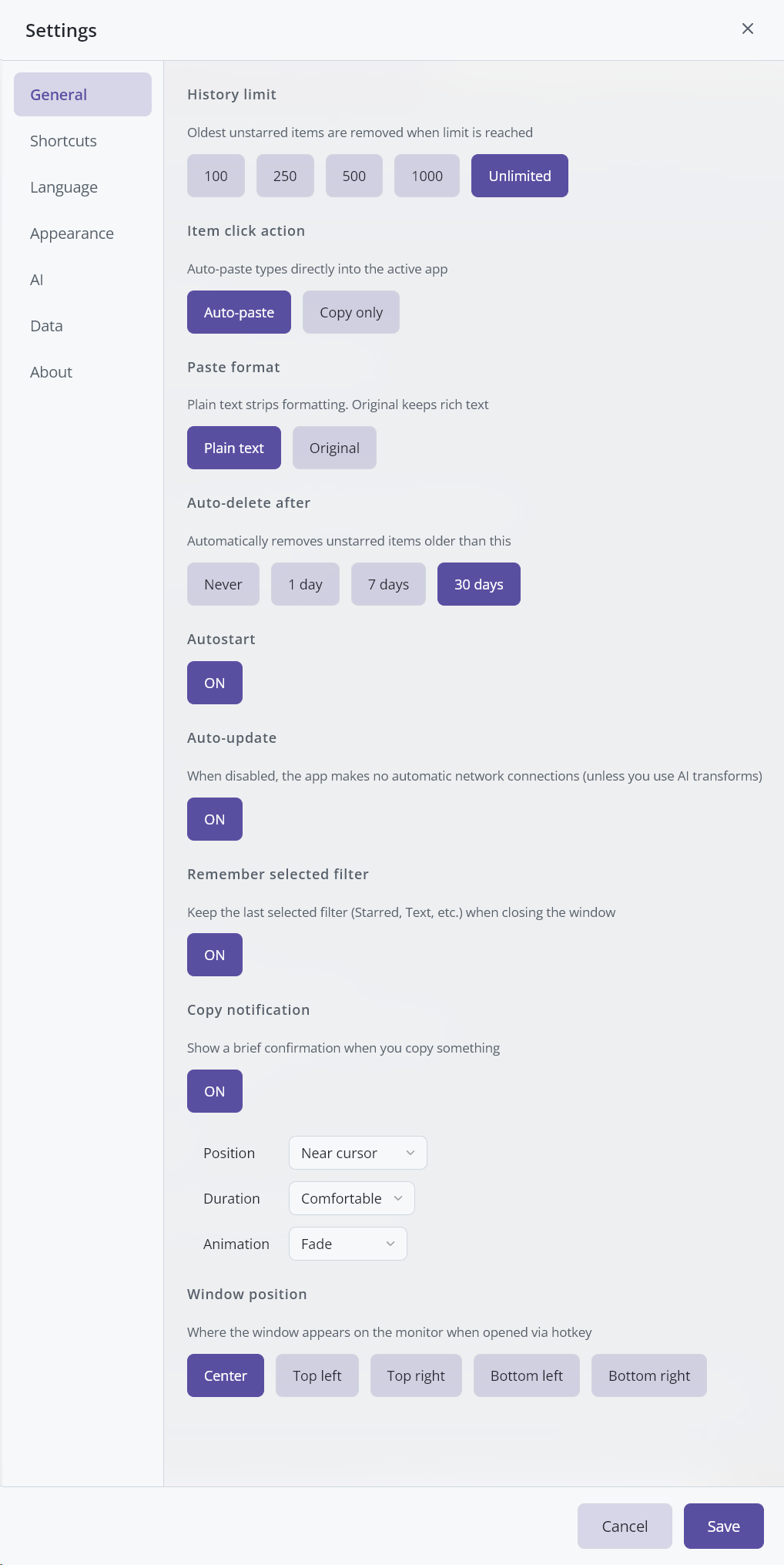
| Setting | Options | Default | Description |
|---|---|---|---|
| History limit | 100, 250, 500, 1000, Unlimited | 500 | Maximum number of clips to keep. Oldest non-starred clips are removed when the limit is reached. |
| Item click action | Auto-paste, Copy only | Auto-paste | "Auto-paste" types the clip directly into the active app. "Copy only" just copies to clipboard. |
| Paste format | Plain text, Original | Plain text | "Plain text" strips formatting. "Original" keeps rich text/HTML. |
| Auto-delete after | Never, 1 day, 7 days, 30 days | Never | Automatically removes non-starred clips older than this. |
| Window position | Center, Top Left, Top Right, Bottom Left, Bottom Right | Center | Where the Beetroot window appears when you press the hotkey. |
| Remember selected filter | ON / OFF | OFF | Keep the last active filter (Starred, Text, Images, etc.) between opens instead of resetting to All. |
| Copy notification | ON / OFF | ON | Show a brief confirmation when you copy something. |
| Position | Near cursor, Top center, Bottom center | Near cursor | Where the notification appears. |
| Duration | Quick, Comfortable, Visible | Comfortable | How long the notification stays. |
| Animation | Fade down, Fade up, Fade, Scale down, Pop, Blur | Fade | Exit animation style. |
| Autostart | ON / OFF | ON | Launch Beetroot automatically when you log into Windows. |
| Auto-update | ON / OFF | ON | Check for updates automatically. When OFF, no automatic network connections are made (except AI transforms). |
Shortcuts Tab
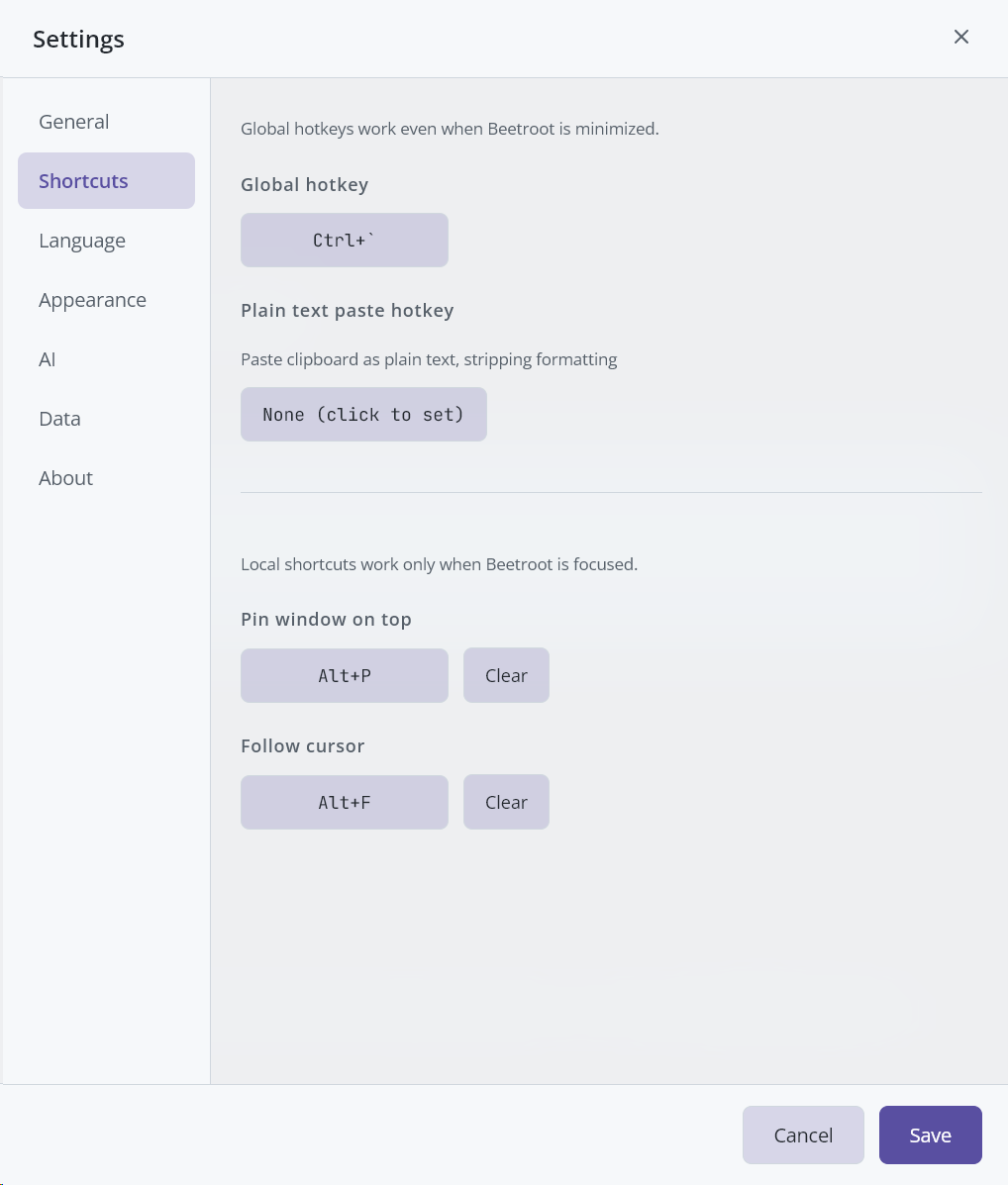
This tab has two sections:
Global hotkeys (work even when Beetroot is minimized):
| Shortcut | Default | Required | Description |
|---|---|---|---|
| Global hotkey | Ctrl+` (backtick) | Yes | Show/hide the Beetroot window. |
| Plain text paste hotkey | None | No | Paste current clipboard as plain text, stripping formatting. |
Local shortcuts (work only when Beetroot is focused):
| Shortcut | Default | Required | Description |
|---|---|---|---|
| Pin window on top | Alt+P | No | Toggle always-on-top mode. |
| Follow cursor | Alt+F | No | Toggle follow-cursor mode. |
To record a new shortcut:
- Click the shortcut button (shows the current key combination).
- The button changes to "Press a key combination..."
- Press your desired key combination (e.g.,
Ctrl+Shift+V). - The new shortcut is captured.
- Click "Save" to apply.
Click "Reset" to go back to the default. Click "Clear" to disable an optional shortcut.
Tip: Shortcuts must be unique -- you can't assign the same key combination to two different actions.
Language Tab
Beetroot supports 26 languages. The interface language is auto-detected from your Windows settings on first launch.
| Languages available |
|---|
| English, Russian, German, Spanish, Chinese, Japanese, French, Portuguese, Korean, Turkish, Italian, Polish, Dutch, Ukrainian, Thai, Hindi, Indonesian, Vietnamese, Czech, Hungarian, Romanian, Swedish, Danish, Finnish, Norwegian Bokmal, Malay |
Select a language and click Save. The entire interface updates immediately.
Appearance Tab
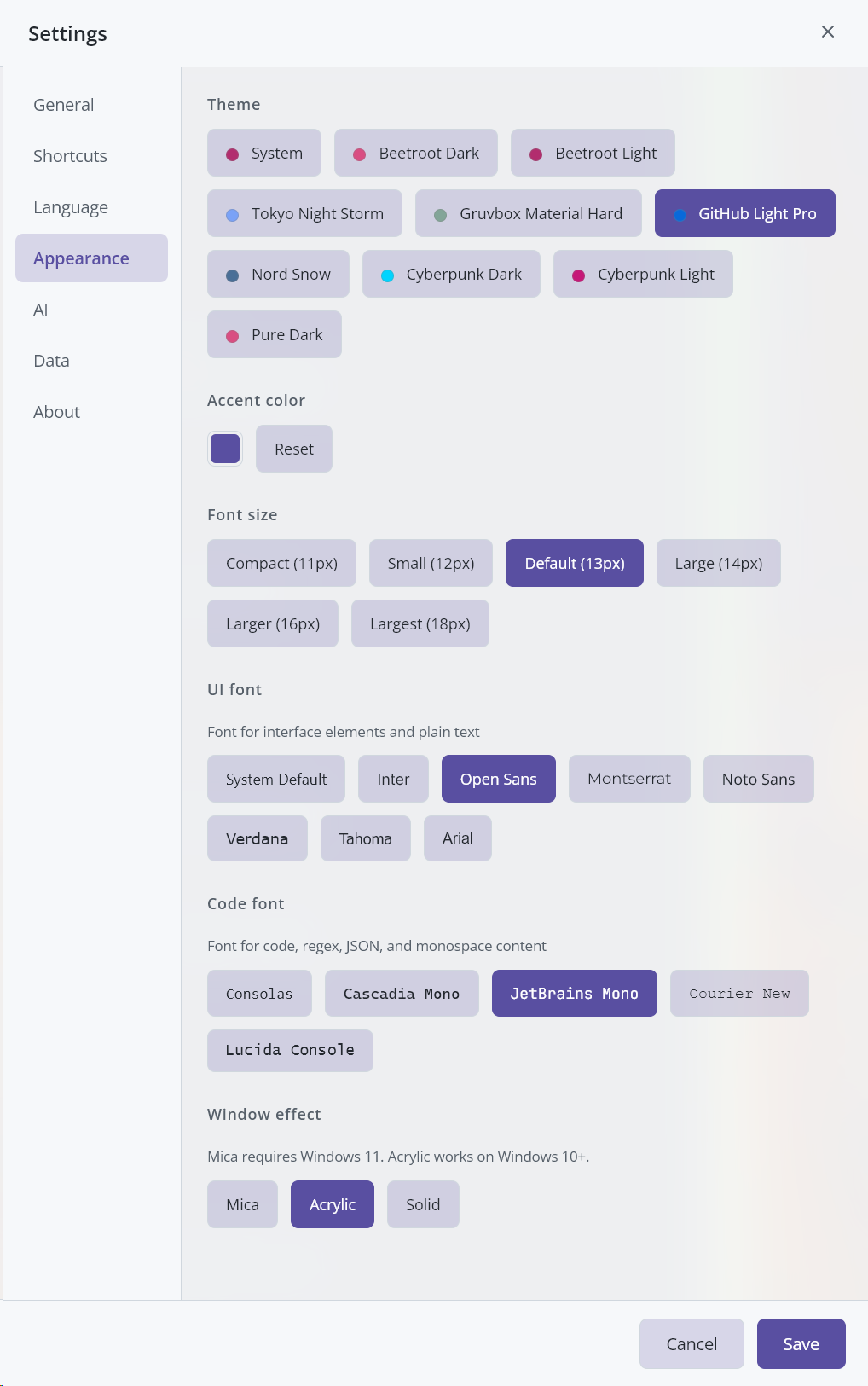
| Setting | Options | Default | Description |
|---|---|---|---|
| Theme | System + 9 themes | System | See Themes and Appearance for the full list. Changes preview live before saving. |
| Accent color | Color picker | Theme default | Override the theme's accent color. Click "Reset" to return to the theme default. |
| Font size | Compact (11px), Small (12px), Default (13px), Large (14px), Larger (16px), Largest (18px) | Default (13px) | Affects all text in the interface. Changes preview live. |
| UI font | System Default, Inter, Open Sans, Montserrat, Noto Sans, Verdana, Tahoma, Arial | System Default | Font for all interface text and plain-text content. |
| Code font | Consolas, Cascadia Mono, JetBrains Mono, Courier New, Lucida Console | Consolas | Font for code, regex, JSON, and monospace content in previews. |
| Window effect | Mica (Win11 only), Acrylic, Solid | Mica | Mica is a subtle desktop wallpaper tint. Acrylic is frosted glass blur. Solid is opaque with no effects. |
Tip: Theme and font size changes preview instantly as you click options, so you can see how they look before saving. If you cancel, the original settings are restored.
AI Tab
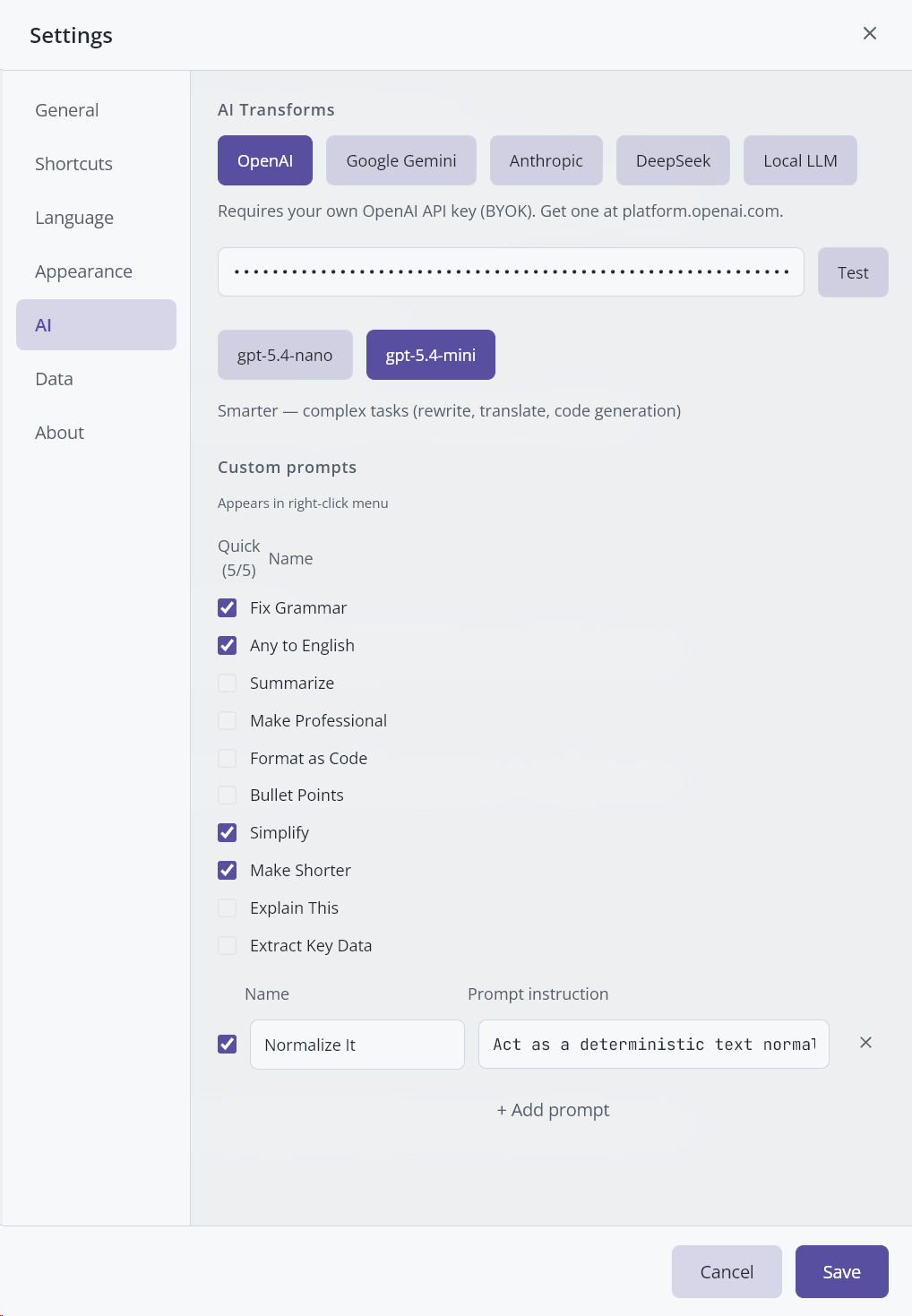
| Setting | Options | Default | Description |
|---|---|---|---|
| Provider | OpenAI, Google Gemini, Anthropic, DeepSeek, Local LLM | OpenAI | Which AI service to use for transforms. |
Provider-specific settings:
OpenAI:
| Field | Description |
|---|---|
| API Key | Your OpenAI API key (starts with sk-). Get one at platform.openai.com. |
| Test button | Validates your key against OpenAI's API. |
| Model | gpt-5.4-nano (fastest, cheapest) or gpt-5.4-mini (smarter, for complex tasks). |
Google Gemini:
| Field | Description |
|---|---|
| API Key | Your Gemini API key (starts with AIza). Get one at aistudio.google.com. |
| Test button | Validates your key. |
| Model | gemini-2.5-flash-lite (fastest) or gemini-2.5-flash (better reasoning). |
Anthropic:
| Field | Description |
|---|---|
| API Key | Your Anthropic API key (starts with sk-ant-). Get one at console.anthropic.com. |
| Test button | Validates your key. |
| Model | claude-haiku-4-5 (fastest) or claude-sonnet-4-6 (best balance). |
DeepSeek:
| Field | Description |
|---|---|
| API Key | Your DeepSeek API key. Get one at platform.deepseek.com. |
| Test button | Validates your key. |
| Model | deepseek-chat (everyday tasks) or deepseek-reasoner (deep reasoning, chain-of-thought). |
Local LLM:
| Field | Description |
|---|---|
| Preset | LM Studio (port 1234), Ollama (port 11434), or Custom endpoint. |
| Endpoint URL | The URL of your local LLM server. Must be localhost/127.0.0.1. |
| Test button | Checks connectivity and auto-detects the loaded model. |
| Model | For Ollama: dropdown of installed models. For others: text input (or auto-detected). |
Custom prompts section (shared across all providers):
| Field | Description |
|---|---|
| Quick Access checkbox | Check up to 5 prompts to show them in the right-click context menu. |
| Built-in prompts | 10 pre-configured prompts. You can enable/disable Quick Access but can't edit them. |
| Custom prompts | Your own prompts. Each has a Name (max 20 chars) and Prompt instruction (max 500 chars). |
| + Add prompt | Creates a new custom prompt. Maximum 20 total prompts. |
Data Tab
| Setting | Description |
|---|---|
| Data location | Shows the current folder where your database and images are stored. Default: %APPDATA%\com.beetroot.app |
| Move button | Copies your database and images to a new folder you choose. |
| Switch button | Points Beetroot to a different existing folder (without copying). An empty folder means a fresh start. |
Data statistics:
| Stat | Description |
|---|---|
| Total items | Number of clips in your history. |
| Text items | Number of text clips. |
| Image items | Number of image clips. |
| Starred items | Number of starred clips. |
| Database size | Size of the SQLite database file. |
| Images folder size | Total size of stored image files. |
Tip: Beetroot blocks the database on network drives, and warns you before moving data to a removable USB drive or a cloud-synced folder (OneDrive, Dropbox, Google Drive), which can cause database corruption. Use a local drive instead.
About Tab
Shows:
- Beetroot version number
- "Check for updates" button with status display
- Links to GitHub, Report Issue, Privacy Policy, Terms of Service
- "Built with Tauri + React" credit
- "Show welcome guide" button to replay the onboarding wizard
Quick Reference
For the complete shortcut list, see Keyboard Shortcuts.
Essential shortcuts:
| Shortcut | Action |
|---|---|
| Ctrl+` (backtick) | Show/hide Beetroot |
Enter | Paste selected clip |
Space | Preview selected clip |
Alt+S | Star / unstar |
Alt+T | Open Transform menu |
Ctrl+1–9 | Quick-paste 1st–9th clip |
For troubleshooting and common questions, see FAQ.
Last updated: 2026-04-04